
How to Set Up Your Router for Gaming in 5 Minutes Flat. Low Ping, No Lag, and Stable Connection Even with 5 Devices Streaming Netflix.
Picture this: You’re deep into a clutch moment, aiming for that headshot or making a game-winning play. Then, suddenly, everything freezes. Lag. Your character teleports across the screen, or worse, you get disconnected. It’s enough to make you want to throw your controller across the room. What’s the deal? It’s often not your internet speed, but your router, which is acting like a traffic cop who just fell asleep on the job.
Most of us just plug in our routers and call it a day, never bothering to peek under the hood. Big mistake. Your router, fresh out of the box, isn’t optimized for high-demand activities like online gaming, especially when everyone else in the house is binging their favorite shows or scrolling through TikTok. But don’t sweat it. I’m here to tell you that getting a buttery-smooth gaming experience, even with a house full of streamers, is not only possible but surprisingly easy. We’re talking five minutes, tops.
Forget those endless tutorials or technical jargon that makes your head spin. We’re cutting straight to the chase. In this article, I’ll walk you through the absolute essentials to transform your sluggish connection into a lean, mean, gaming machine. Get ready for low ping, zero lag, and a stable connection that won't leave you hanging. Let's dive in.
Why Your Router is a Bottleneck (And How We'll Fix It)
Your router’s job is to manage all the internet traffic coming into and out of your home. Think of it as the central nervous system of your home network. The problem is, most default settings treat all data packets equally. A Netflix stream gets the same priority as your critical gaming data. When too many devices demand bandwidth simultaneously, things get congested, leading to the dreaded lag and high ping that ruin your game.
This is where we step in. We're going to teach your router to play favorites, prioritizing your gaming traffic above all else. This isn't about magical internet speed boosts; it’s about smart traffic management. We'll fine-tune a few key settings that make all the difference. It's like upgrading from a chaotic free-for-all to an organized superhighway for your game data.
The 5-Minute Game Plan: Your Router's Secret Sauce
Ready? Let's get down to brass tacks. These steps are designed to be quick and impactful. You won't need to be a network engineer to follow along.
Step 1: Accessing Your Router's Brains
First things first, you need to log into your router's administration page. This is where all the magic happens.
- Find your router's IP address: Typically, it’s something like 192.168.1.1 or 192.168.0.1. You can usually find this on a sticker on the back or bottom of your router. If not, open Command Prompt (Windows) or Terminal (Mac) and type ipconfig (Windows) or netstat -nr | grep default (Mac), then look for the "Default Gateway."
- Open a web browser: Type that IP address into the URL bar and hit Enter.
- Log in: You'll need a username and password. Again, this is often on the router's sticker (e.g., admin/admin, admin/password). If you changed it and forgot, you might have to perform a factory reset (which wipes all settings, so be cautious).
Once you’re in, you’re looking at the control panel for your entire home network. Don’t be intimidated; we’re only going for a few specific settings.
Step 2: Quality of Service (QoS) – Your Gaming Priority Pass
This is arguably the most impactful setting you can change. Quality of Service (QoS) tells your router which data gets preferential treatment. For us, that means giving your game data the express lane.
- Locate QoS settings: Look for a section labeled "QoS," "Bandwidth Management," or "Traffic Prioritization." It might be under "Advanced Settings" or "Wireless Settings."
- Enable QoS: Turn it on if it's not already.
- Prioritize gaming: Most modern routers allow you to prioritize traffic by application (e.g., "Gaming," "VoIP") or by specific devices. If you can, select your gaming PC or console and set its priority to "Highest" or "Gaming." Some routers let you manually set upload/download bandwidth for specific traffic types; if so, allocate a decent chunk to gaming.
By doing this, even when five devices are streaming Netflix in glorious 4K, your router will make sure your game packets cut to the front of the line. No more waiting around.
Step 3: Wired is King (Even in 2026!)
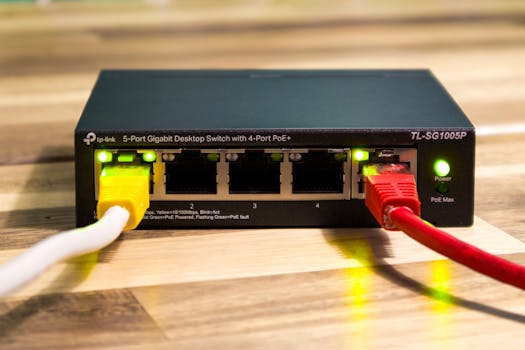
I cannot stress this enough: for gaming, a wired Ethernet connection beats Wi-Fi, hands down. It's just a simple fact. Wi-Fi is convenient, but it's prone to interference, signal drops, and higher latency, no matter how fancy your Wi-Fi 6 router is.
- Connect via Ethernet: If your gaming rig isn't already plugged directly into your router or a network switch with an Ethernet cable, do it now.
- Benefits: You'll immediately notice lower ping, a more stable connection, and greater bandwidth consistency. Think of it as the difference between driving on a perfectly paved, empty road versus a bumpy, crowded dirt path.
This single change can often fix a boatload of issues on its own. Don't skip this if you're serious about low latency.
Step 4: DNS Server – The Internet's GPS
Your Domain Name System (DNS) server is like the internet's phone book. When you type in a website name (like google.com), the DNS server translates that into an IP address. Default DNS servers from your ISP can sometimes be sluggish, adding milliseconds to your connection. Every millisecond counts in gaming.
- Find DNS settings: Look for "WAN Settings," "Internet Settings," or "DHCP Settings" within your router's interface.
- Change to a faster DNS:
- Google Public DNS: Primary 8.8.8.8, Secondary 8.8.4.4
- Cloudflare DNS: Primary 1.1.1.1, Secondary 1.0.0.1
- Apply and Reboot: Save your changes and give your router a quick reboot to ensure the new settings take effect.
This small tweak can shave off precious milliseconds, leading to a snappier overall internet experience, especially in games where every frame matters.
Step 5: Firmware Update – The Router's Annual Check-up
Router firmware is the operating system that runs your router. Manufacturers constantly release updates that improve performance, fix bugs, and add new features. Running outdated firmware is like driving an old car without ever changing the oil.
- Locate Firmware Update: Look for "Firmware Update," "System Tools," or "Administration."
- Check for updates: Your router might have a button to "Check for New Firmware." If not, you might need to visit your router manufacturer's website, download the latest firmware for your specific model, and upload it manually.
- Install and reboot: Follow the on-screen instructions. This process usually takes a few minutes, and your router will reboot afterward.
Keeping your firmware current ensures your router is running at peak efficiency, leveraging the latest optimizations for speed and stability. It's a no-brainer for a healthy network.
Fine-Tuning for a Bulletproof Connection (Optional but Recommended)
You’ve done the heavy lifting, and your connection should be feeling significantly snappier. These next few tips are like the cherry on top, especially if you encounter specific issues or want to squeeze every last drop of performance from your setup.
Port Forwarding (For Specific Games/Servers)
Sometimes, certain games or game servers require specific "ports" to be open on your router to establish the best connection. If you're having trouble connecting to a particular game or hosting a server, port forwarding might be the solution.
- Research game ports: A quick Google search for "[Game Name] + port forwarding" will usually give you the specific TCP/UDP ports required.
- Locate Port Forwarding settings: Look for "Port Forwarding," "Virtual Servers," or "NAT Forwarding" in your router's advanced settings.
- Add new rules: You'll enter the game's port numbers, select the protocol (TCP, UDP, or Both), and specify the IP address of your gaming PC or console.
Just a heads up: be careful with port forwarding. Only open the ports you absolutely need and always ensure you're pointing them to the correct device to avoid potential security risks.
Channel Optimization (For Wi-Fi Users)
If going wired just isn't an option, optimizing your Wi-Fi channel can reduce interference from neighboring networks. Think of Wi-Fi channels like lanes on a highway; if everyone's in the same lane, traffic slows down.
- Use a Wi-Fi analyzer app: Apps like Wi-Fi Analyzer (Android) or NetSpot (Windows/Mac) can show you which channels are least congested in your area.
- Change Wi-Fi channel: In your router's wireless settings, find the "Channel" or "Wireless Channel" option for your 2.4 GHz and 5 GHz networks. Select a less crowded channel. Channels 1, 6, and 11 are generally best for 2.4 GHz. For 5 GHz, there are more options, but aim for one away from your neighbors.
This can significantly improve the reliability and speed of your wireless connection, particularly in dense urban environments.
Reboot is Your Best Friend
It sounds cliché, but a good old-fashioned reboot can solve a surprising number of network issues. Just like a computer, routers can get bogged down over time. A fresh start often clears out temporary glitches and memory leaks.
- Power cycle: Unplug your router and modem from power for about 30 seconds, then plug them back in (modem first, then router).
- Do it regularly: Make it a habit to reboot your router once a month or whenever you notice performance dipping.
It's a simple, free fix that often works wonders.
There you have it. You've just taken your router from a confused traffic cop to a master strategist, ensuring your gaming data always has the green light. These steps, especially the first five, are quick, effective, and will make a world of difference in your online gaming experience. No more excuses for lag-induced losses!
Now, go on, enjoy that low ping, zero lag, and rock-solid connection. Your opponents won't know what hit them. Happy gaming!