
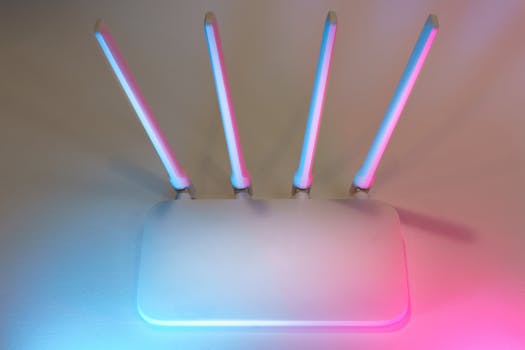
Stop Neighbors from Stealing Your WiFi Right Now. The Ultimate Router Security Setup Guide That Takes Less Than 10 Minutes to Complete.
Ever feel like your internet connection is stuck in molasses? You know, when YouTube buffers endlessly, downloads crawl, and even simple web pages take ages to load? It’s frustrating, to say the least. While a flaky internet service provider (ISP) can certainly be the culprit, there’s another, often overlooked possibility: a digital moocher.
Yep, we're talking about that sneaky neighbor (or two, or three) who might be freeloading off your WiFi. Not only does this slow down your precious bandwidth, making your online experience a real drag, but it also opens up a whole can of worms when it comes to your online security and privacy. Think about it: everything you do online, potentially exposed. Yikes!
Good news, though. You don't need a degree in cybersecurity to put an end to this wireless pilfering. In fact, securing your home network is much simpler than you think. This guide is your no-nonsense roadmap to locking down your WiFi in less than 10 minutes. Seriously, just a few quick tweaks, and you'll be on your way to faster speeds and genuine peace of mind.
The Sneaky Culprit: Why Your WiFi is an Easy Target
So, how does this happen? Well, most routers come right out of the box with pretty weak defenses. It's like leaving your front door wide open with a "Welcome, please come in!" mat. Many people simply plug them in and forget about security, assuming everything's fine and dandy.
The truth is, default settings are often the biggest security holes. We're talking about generic passwords like "admin" or "password," easily guessable network names, and vulnerable features like Wi-Fi Protected Setup (WPS) left enabled. These are practically neon signs for anyone looking for free internet, and they're just begging for trouble.
Even if you've changed *some* settings, older encryption methods can leave your network exposed. Think of it this way: technology evolves, and so do the ways bad actors try to get in. What was once considered secure might now be a gaping hole in your digital fence.
Let's Get Down to Business: Your 10-Minute Security Checklist
Alright, let’s roll up our sleeves. Grab your router, maybe your phone or laptop, and let’s get this done. The first step for almost all of these actions is to access your router's administration page. You typically do this by opening a web browser and typing in your router's IP address.
- Most common IP addresses are: 192.168.1.1, 192.168.0.1, or 192.168.2.1.
- If those don't work, flip your router over. The default IP, username, and password are often printed on a sticker on the bottom or back.
- Once you're there, you'll be prompted for a username and password. Use the defaults from the sticker if you haven't changed them yet.
Step 1: Change That Default Admin Password (Seriously!)
This is, hands down, the most critical step. Your router's admin password is like the master key to your entire network. If someone has it, they can change all your settings, see your connected devices, and wreak all sorts of havoc. It's truly a big deal.
Don’t just change your WiFi password; change the password you use to *log in* to your router's settings. It’s usually found under "Administration," "System," "Tools," or "Security" within the router's interface. Dig around a bit; you'll find it.
- Choose a strong, unique password that’s difficult to guess. We’re talking something completely random.
- Aim for a mix of uppercase and lowercase letters, numbers, and symbols. The longer, the better!
- Absolutely avoid easily discernible personal information like birthdays, pet names, or your street address. That's just asking for trouble.
Step 2: Fortify Your Network Name (SSID)
Your Service Set Identifier (SSID) is the name your WiFi network broadcasts to the world. Default SSIDs often include the router brand and model (e.g., "TP-Link_ABCD," "Linksys5G_EFGH"). This information can give a potential intruder a serious head start on finding known vulnerabilities for your specific device. You don't want to make it easy for them.
Change it to something personal but not revealing. Make it something that doesn't scream "come hack me" or give away too much about who you are.
- Choose a name that doesn't include personal details like your name or address.
- Avoid using "free wifi" or anything similar that might attract unwanted attention.
- Make it memorable for you and your family, but utterly meaningless to outsiders.
Some folks opt to "hide" their SSID, making it invisible to casual scanners. While this adds a tiny hurdle, it's not a foolproof security measure and can sometimes make connecting new devices a bit of a headache. A strong password is far, far more effective and less cumbersome.
Step 3: Beef Up Your Encryption Protocol
This is the actual lock on your WiFi door. Old encryption standards are like flimsy padlocks that a toddler could break. You want something robust, something that stands up to modern threats. Navigate to your "Wireless Security" or "WiFi Settings" section in the router interface.
- Always choose WPA2-PSK (AES) as the absolute minimum encryption standard. This has been the industry standard for a while.
- If your router and all your devices support it, WPA3 is the latest and greatest, offering even stronger, cutting-edge security. Go for it if you can!
- Absolutely avoid WEP and WPA (original). These are ancient, easily cracked, and offer practically no protection in today's digital world. Using them is like leaving your door unlocked.
Once you’ve selected your preferred encryption, you’ll be prompted to set your WiFi password (the one devices use to connect). Again, make it long, complex, and unique. This is where most people get tripped up, conflating it with the router admin password. Remember, they should be different!
Step 4: Disable WPS (Wi-Fi Protected Setup)
WPS was designed to make connecting new devices easier by pushing a button on the router or entering a short PIN. Sounds convenient, right? Unfortunately, it’s a notorious security flaw, a major Achilles' heel for many networks. The PIN can be brute-forced relatively quickly, leaving your entire network vulnerable.
Go to your router's "WPS" or "Wi-Fi Protected Setup" section and simply turn it off. You won't miss it, as it's almost never worth the security risk, and your network will be much safer without it enabled. Trust us on this one.
Step 5: Keep Your Router Firmware Up-to-Date
Think of router firmware as the operating system for your router. Just like your computer or phone, routers receive updates that fix bugs, improve performance, and, crucially, patch security vulnerabilities. Running outdated firmware is like driving around with bald tires and no airbags—you're just waiting for something bad to happen.
Most routers have an "Update" or "Firmware Upgrade" section within their admin interface. Some even offer automatic updates, which is fantastic. It's a good habit to check for new versions every few months. A quick search on your router manufacturer's website can also point you to the latest firmware and installation instructions.
What If You Still Suspect a Leech? (Beyond the 10 Minutes)
You've done all the hard work, but a nagging feeling persists? Don't sweat it. There are ways to check who's connected to your network. Most routers have a "Connected Devices" or "Client List" section in their admin interface. Take a peek. Do you recognize all the device names and MAC addresses? Any strange characters or unfamiliar devices should raise a red flag.
For an even deeper dive, consider using a network scanner app (like Fing or Advanced IP Scanner) on your phone or computer. These tools can give you a comprehensive list of all devices on your network, often identifying their type and manufacturer. If you spot an unknown device, you now know how to boot them off by changing your WiFi password (Step 3) or, if you're really tech-savvy, using MAC address filtering.
Advanced Tip (Use with Caution): MAC Address Filtering
MAC (Media Access Control) address filtering allows you to create a whitelist of approved devices. Only devices with their MAC address on your list can connect. While it sounds ironclad, MAC addresses can be spoofed, and it can be a hassle to add every new device that comes into your home. It’s an extra layer, but not a primary defense, and definitely not foolproof.
If you decide to use it, be incredibly careful. One wrong entry and you could lock yourself out of your own network. Make sure you understand how to reset your router to factory defaults if things go awry before you even think about messing with this setting.
The Payoff: Speed, Security, and Peace of Mind
There you have it. In just a few minutes, you’ve transformed your vulnerable home network into a formidable fortress. No more bandwidth theft, no more security worries, and definitely no more mysterious strangers piggybacking on your connection. You'll likely notice an immediate improvement in your internet speed, especially if you had a persistent digital squatter draining your resources.
Remember, router security isn't a "set it and forget it" kind of deal, but these initial steps are massive. Regularly check your settings, keep your firmware updated, and stay vigilant. Your private digital life deserves protection, and your internet speed deserves to be all yours. So go ahead, reclaim your WiFi. You've earned it!