Don’t Let Your ISP Control Your Router. 9 Advanced Settings You Must Change Right Now for Faster, More Secure Internet Every Day.
Ever feel like your internet connection isn't quite living up to its potential? Perhaps your streaming buffers at the worst possible moment, or your online gaming lags when you need it most. Many folks chalk it up to their internet service provider (ISP), thinking it's just the luck of the draw. But what if I told you a major culprit might be sitting right under your nose, completely overlooked?
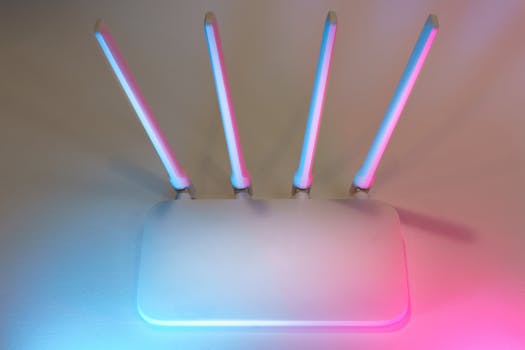
That often-forgotten box, your **router**, is the gateway to your digital world. And here’s the kicker: many ISPs hand you a router, set it up with generic, default configurations, and essentially leave you in the dark. They want to keep things simple for support, but in doing so, they often leave your network slower, less secure, and frankly, not working as hard as it could be for *you*.
It’s time to take back the reins. Think of your router as the command center for your home network. By tweaking a few **advanced settings**, you can unlock its true potential, dramatically boosting both your internet **speed** and **security**. You don’t need to be a tech guru to do this, just a little know-how and a willingness to peek under the hood. Ready to get started? Let’s dive into nine game-changing settings you should adjust today.
1. Ditch the Default: Change Your Router’s Admin Credentials
This one is a no-brainer, yet it’s astonishing how many people skip it. When you first unbox your router, it comes with a **default username and password**, often something incredibly generic like 'admin/admin' or 'user/password.' Criminals and even casual snoops know these like the back of their hand.
Leaving these defaults in place is like leaving your front door unlocked with a giant 'Welcome Burglars!' sign. It’s the easiest way for someone to gain full control of your router, fiddling with settings, accessing your network, or even planting malware. Don't be that person!
-
What to do: Log into your router's administration panel (usually by typing its IP address, like 192.168.1.1, into your browser). Navigate to the **"Administration," "System," or "Security"** section.
-
Create a strong, unique password that’s long, complex, and memorable only to you. Think of a phrase, not a single word.
-
Change the default username too, if your router allows it, for an extra layer of protection.
2. Always Update: Keep Your Router Firmware Current
Just like your phone or computer, your router runs on software – specifically, **firmware**. And just like any other software, firmware updates are released to fix bugs, introduce new features, and, most critically, patch **security vulnerabilities**.
Running outdated firmware is like driving a car with bald tires; you’re just asking for trouble. Cybercriminals constantly hunt for known exploits in older firmware versions. A simple update can be the difference between a secure network and one that’s wide open to attack, not to mention often bringing performance improvements.
-
How to check: Inside your router's admin panel, look for a section like **"Firmware Update," "System Tools," or "Maintenance."**
-
Download the latest firmware from your router manufacturer’s official website. Always use the official site to avoid malicious downloads.
-
Follow the update instructions carefully. This process usually takes a few minutes and may require a router restart. Don't interrupt it!
3. Personalize Your Wi-Fi: Strong SSID and Password
Your Wi-Fi network has a name, its **SSID** (Service Set Identifier), and a password. Many people just stick with the default SSID, which often includes the router brand or ISP name. This can give away clues about your network that attackers might exploit.
More importantly, your **Wi-Fi password** is the first line of defense against unauthorized access to your wireless network. A weak password is an open invitation for freeloaders or, worse, bad actors who want to piggyback on your internet or access your devices.
-
Choose a unique SSID that doesn't reveal personal information or your router type. Something fun and obscure is perfect.
-
Create an uncrackable Wi-Fi password. Aim for at least 12-16 characters, a mix of uppercase and lowercase letters, numbers, and symbols. Forget simple dictionary words!
-
Find these settings typically under **"Wireless," "Wi-Fi Settings," or "Network Name"** in your router's interface.
4. Fortify Your Wireless: Upgrade to WPA3 Encryption
When it comes to Wi-Fi security, not all encryption methods are created equal. You’ve probably seen options like WEP, WPA, WPA2, and now **WPA3**. If your router is still using WEP or even older WPA, you're essentially using a screen door against a hurricane.
**WPA2-PSK (AES)** has been the standard for a while and offers solid protection. However, **WPA3** is the newest kid on the block, boasting even stronger encryption and better protection against brute-force attacks. If your router and devices support it, WPA3 is the way to go for the **highest level of wireless security**.
-
Locate your wireless security settings, usually within the "Wireless" section of your router’s interface.
-
Select "WPA3-Personal" if available and supported by all your devices.
-
If WPA3 isn't an option, ensure you’re using **"WPA2-Personal (AES),"** which is far superior to TKIP or older WPA versions.
5. Supercharge Your Surfing: Change Your DNS Servers
Your router, by default, uses your **ISP's DNS servers**. DNS (Domain Name System) is like the internet’s phonebook, translating website names (like google.com) into IP addresses that computers understand. The speed and quality of these servers directly impact how fast websites load.
Many third-party **DNS servers** offer significant advantages over default ISP ones. They can be **faster**, more **private**, and some even offer **built-in ad-blocking** or **malware protection**. Think of it as upgrading from a clunky old phonebook to a lightning-fast digital directory that also screens spam calls.
-
Popular alternatives:
-
Cloudflare DNS (1.1.1.1 and 1.0.0.1): Known for speed and privacy.
-
Google Public DNS (8.8.8.8 and 8.8.4.4): Reliable and fast.
-
OpenDNS (208.67.222.222 and 208.67.220.220): Offers content filtering options.
-
Find the **"DNS Settings"** under **"Network," "WAN," or "Internet"** in your router. Manually enter the primary and secondary DNS server addresses.
6. Snip the Shortcut: Disable Wi-Fi Protected Setup (WPS)
**WPS** was designed to make connecting devices to Wi-Fi easier, often with just a push of a button or a short PIN. Sounds convenient, right? Well, sometimes convenience comes at a steep price for **security**.
Unfortunately, the WPS PIN feature has a serious, well-documented vulnerability. Attackers can brute-force the 8-digit PIN relatively quickly, even if it has millions of combinations. Once they crack the PIN, they gain access to your Wi-Fi password. It’s a gaping hole in your network’s defenses.
-
Find "WPS" settings within your router's "Wireless" or "Security" section.
-
Disable it immediately. You can always connect devices manually using your strong Wi-Fi password. The slight inconvenience is a small price to pay for significantly enhanced security.
7. The Welcome Mat: Set Up a Guest Network
Do you have friends or family visit frequently? Or perhaps you run a small home business? Letting guests connect directly to your main Wi-Fi network is a common practice, but it's also a common security misstep.
A **guest network** creates a separate, isolated Wi-Fi network specifically for visitors. This means your guests can access the internet, but they cannot access your personal devices, shared files, or other sensitive information on your main network. It's a fantastic way to maintain **privacy and security** without being impolite.
-
Look for **"Guest Network"** settings, often under "Wireless" or "Advanced Settings."
-
Enable it, give it a unique name and a separate, easy-to-share password.
-
You can often configure options like how long guests can stay connected or if they can see other guest devices.
8. Take Control of Traffic: Configure Quality of Service (QoS)
Ever had your video call pixelate because someone else started streaming 4K Netflix? Or your online game lag out while a family member downloads a huge file? That’s where **Quality of Service (QoS)** comes in. Think of it as a traffic cop for your internet data.
**QoS** allows you to prioritize certain types of internet traffic or specific devices over others. Want your gaming console to always have priority bandwidth? Or ensure your work laptop’s video conferences never stutter? QoS can make that happen, providing a smoother, more reliable experience for your most important activities.
-
Locate **"QoS," "Bandwidth Control," or "Traffic Prioritization"** in your router's advanced settings.
-
Identify critical devices or applications (e.g., streaming services, online games, VoIP).
-
Set their priority levels (e.g., highest, high, normal). Be mindful not to prioritize too many things, or the effect will be diluted. Experiment to find what works best for your household.
9. Lock Down Unnecessary Doors: Review and Disable UPnP
**UPnP (Universal Plug and Play)** is a feature designed for convenience, allowing devices on your network to automatically discover and communicate with each other, and even open **ports** on your router without manual intervention. Sounds helpful, right?
However, this convenience comes with a significant **security trade-off**. Because UPnP opens ports automatically, it can unwittingly expose your network to external threats if a device on your network is compromised or if there's a vulnerability in the UPnP implementation itself. It's like leaving a hidden master key under the doormat that any program can find and use.
-
Unless you have a specific application that *absolutely* requires UPnP (like some older gaming consoles or media servers, and you understand the risks), it's generally recommended to **disable it**.
-
Look for **"UPnP"** in the **"Advanced," "NAT," or "Port Forwarding"** sections of your router interface.
-
Switch it off. If something stops working, you can selectively open specific ports manually (Port Forwarding) for those applications, which is a much safer approach.
There you have it. Nine powerful settings, often hidden in plain sight, that can transform your internet experience. From bolstering your defenses against cyber threats to ensuring your favorite online activities run without a hitch, taking charge of your router is a crucial step toward a faster, more **secure digital life**.
Don't let your ISP dictate your internet destiny. These tweaks might seem a little intimidating at first, but with a bit of courage and these pointers, you’ll be a network master in no time. So, go ahead, log into that router, roll up your sleeves, and take back control. Your internet will thank you for it!